
ESP32S31_Windows Desktop Secondary Display

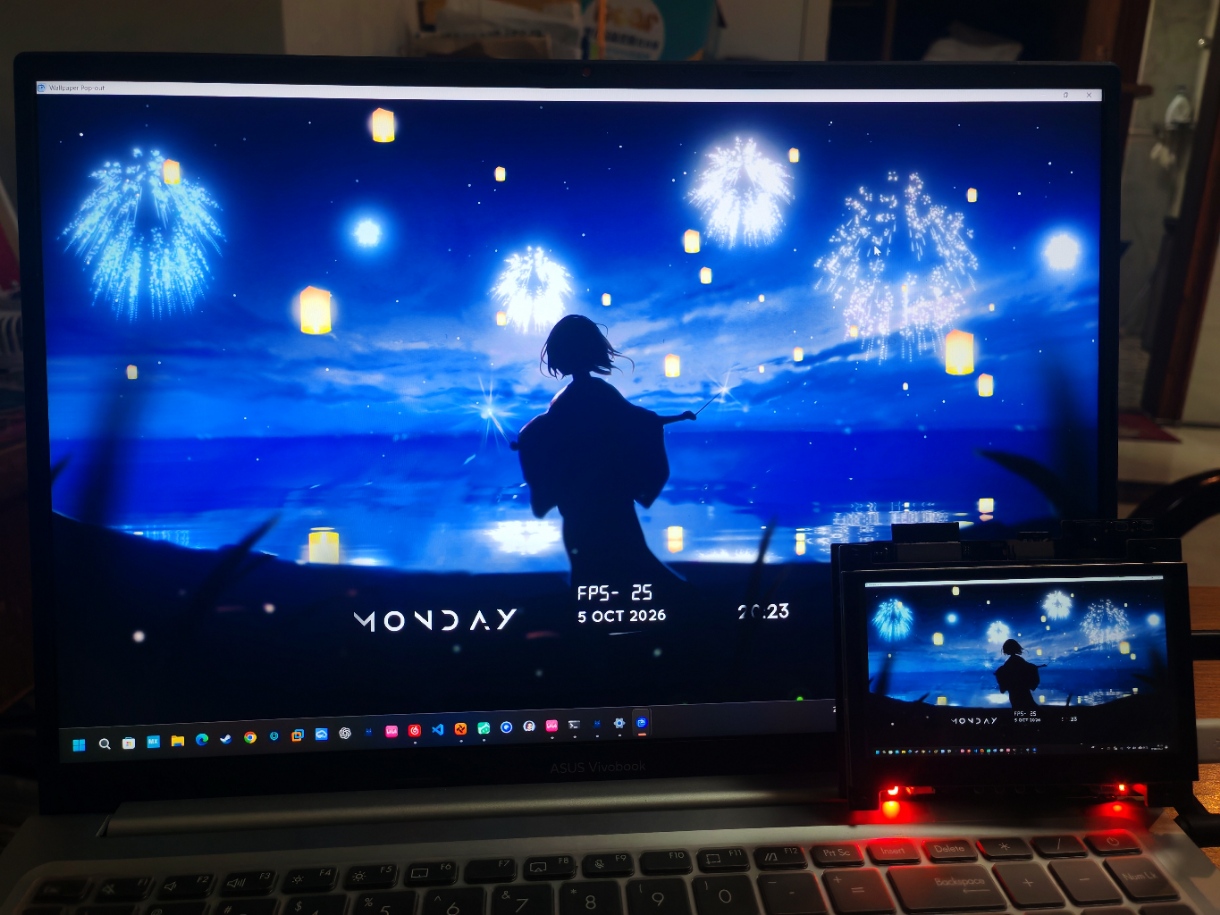
This content is AI-translated and may differ from the original.
Windows Desktop Secondary Screen Based on ESP32-S31
Turn the ESP32-S31-Korvo-1 development board into a USB extension screen
Plug a USB cable into the computer, and Windows will have an additional 800 × 480 @ 60 FPS display, which also comes with a five-point touch screen and a 48 kHz sound card. No HDMI capture card needed, no extra power supply required.
Features
- Display:800 × 480 RGB565 panel, up to 60 FPS
- Touch:GT1151 five-point capacitive touch, reported to the host as an HID multi-touch device, can directly operate the computer
- Audio:UAC sound card: speaker + microphone, 48 kHz / 16 bit / stereo
- Connection:Single USB cable (on-board OTG High-Speed PHY, 480 Mbps)
- Dependencies:All components are built-in offline, compilation does not require internet
- Host side:Windows 10 / 11, driver is signed, no test mode needed
Operation Principle
The board is recognized as a USB display device. The Windows IDD indirect display driver encodes the desktop image into JPEG and pushes it to the board via a USB Bulk endpoint; the board uses a hardware JPEG decoder to decode and directly writes to the panel frame buffer.
The whole process bypasses LVGL and does not rely on a network stack, flow: receive packet → decode → refresh screen. Touch and audio are transmitted via HID and UAC channels respectively, three paths share a single USB cable.
JPEG encoding greatly reduces transmission bandwidth, and decoding and screen refresh use hardware paths, so it can stably run at 60 FPS. The frame buffer and frame pool are entirely placed in PSRAM, not occupying the chip's internal RAM.
Getting Started Guide
Hardware Preparation
- ESP32-S31-Korvo-1 development board (on-board 800×480 RGB screen, GT1151 touch, ES8389 audio Codec)
- High-speed USB data cable (not a pure charging cable), connect to the board's high-speed OTG port, do not connect the debug serial port
- Windows 10 / 11 x64 computer
The debug serial port and the secondary screen USB are two independent peripherals; you can still view serial logs while the secondary screen cable is plugged in.
1. Prepare ESP-IDF environment
The project is verified based on ESP-IDF v6.1, and it is recommended to use the EIM tool to install and manage the environment.
After installation, open the activated IDF terminal.
2. Get source code
git clone git@github.com:xkk6663/uext_screen.git
cd uext_screen
3. Build and flash
idf.py build
idf.py -p COM5 flash monitor
The project's sdkconfig already solidifies chip, Flash, partition, PSRAM configurations, no additional settings needed.
After flashing and reboot, the serial output prints USB Mount and frame rate information, indicating the firmware is running normally.
4. Install Windows display driver
The project uses the IDD indirect display driver to implement a virtual monitor; the repository includes a signed driver package, no need to enable system test mode.
- Power on the board and connect the high-speed USB port
- Run the driver installer and follow the wizard to complete installation
- Open Device Manager and confirm the new device is successfully loaded under Display adapters
- Go to Windows display settings, and you will see the 800×480 extended monitor
If automatic installation fails, you can manually unzip the driver package and install it in Device Manager by specifying the INF file path.
5. Configure extended screen
In Windows display settings, select the newly added monitor, choose Extend these displays for multi-monitor mode, set scaling to 100%, and drag to adjust screen position.
Normal result: the secondary screen displays the desktop correctly, and touch can directly control the computer.
Daily Use and Parameter Tuning
- Touch:Windows natively recognizes multi-touch, can be calibrated in system touch settings, supports single-finger click-drag and five-point touch
- Audio:In sound settings, switch output and input devices to this sound card to use the on-board speaker and microphone
- Adjustable parameters (configured in menuconfig)
The panel uses an RGB565 interface, and image quality is mainly determined by JPEG quality: higher quality results in larger per-frame data, making frame loss more likely.
FAQ
- Cannot find new monitor: ensure the high-speed OTG port is used, the cable supports data transfer, serial port shows USB mount logs, driver installed correctly
- Low frame rate: ensure the computer's USB port is USB 2.0 or higher, do not set JPEG quality too high; static images without updates will naturally lower frame rate, drag a window to test again
- Touch offset: recalibrate touch in Windows touch settings
- Compilation error: use ESP-IDF v6.1, run
idf.py fullcleanto clean and recompile - Can it be driverless: No, it uses a custom USB vendor protocol and requires the accompanying IDD driver
- Will the firmware overwrite other programs: the project uses an independent partition table, only uses the factory partition, ensure it does not conflict with existing firmware partitions
License and Acknowledgments
The project is open source under the Apache License 2.0.
Based on Espressif's official usb_extend_screen example, restructured into an independent project with all dependencies built-in offline; the accompanying Windows IDD driver uses a community-signed compiled version; hardware platform is the ESP32-S31-Korvo-1 development board.
Comments (0)
Comments
Sign in to leave a comment